App passwords
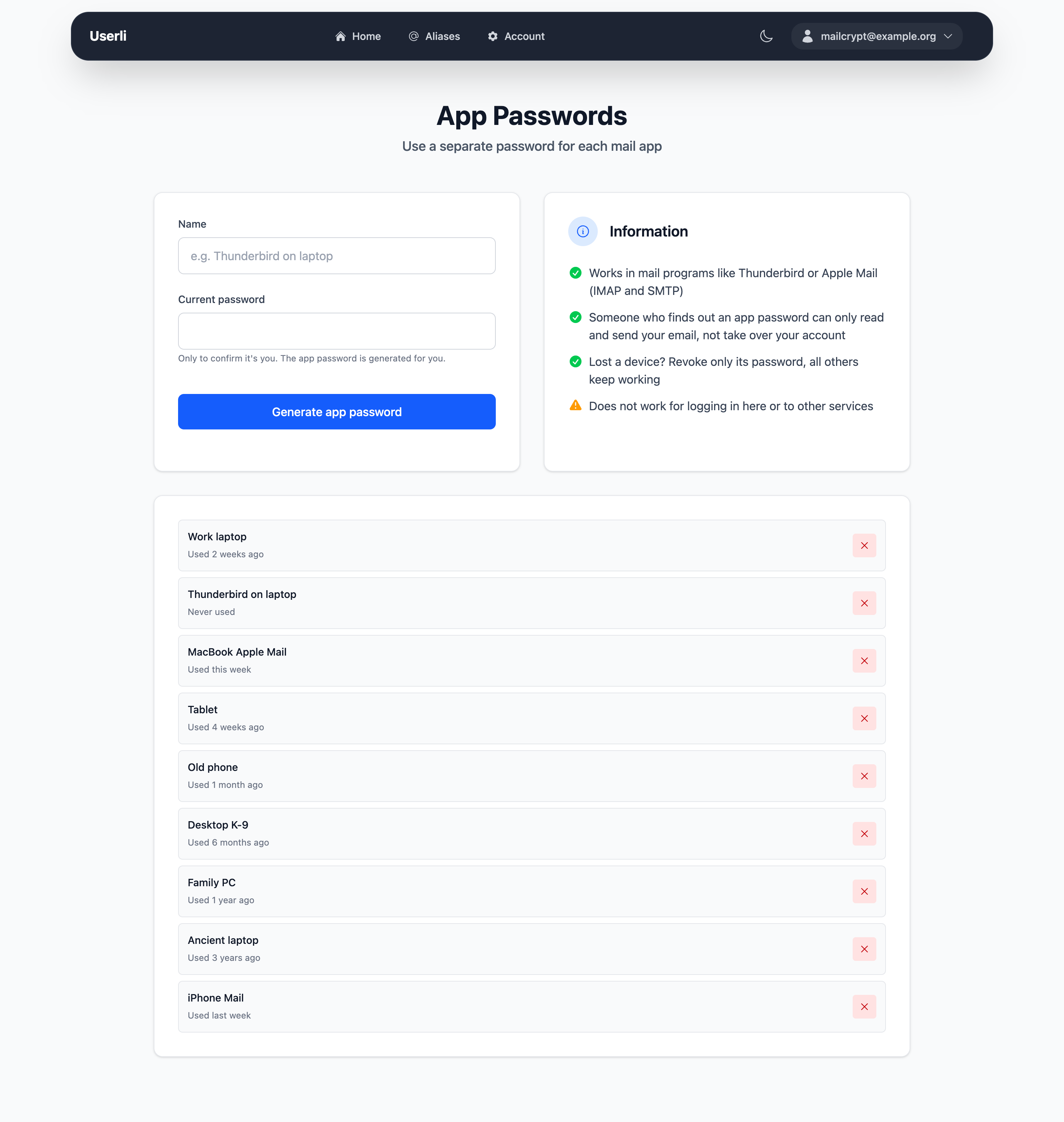
An app password is a separate password for one email program, for example Thunderbird on your laptop or the mail app on your phone. Use it instead of your password when you set up the app.
App passwords work for reading and sending email (IMAP, SMTP) in mail programs like Thunderbird or Apple Mail. They do not work for signing in to this web interface or to other services.
This makes them safer than using your password everywhere:
- Someone who finds out an app password can only read and send your email. They can't sign in here, so they can't change your password or take over your account.
- If a device gets lost, delete its app password. Your password and your other devices keep working.
Generate an app password
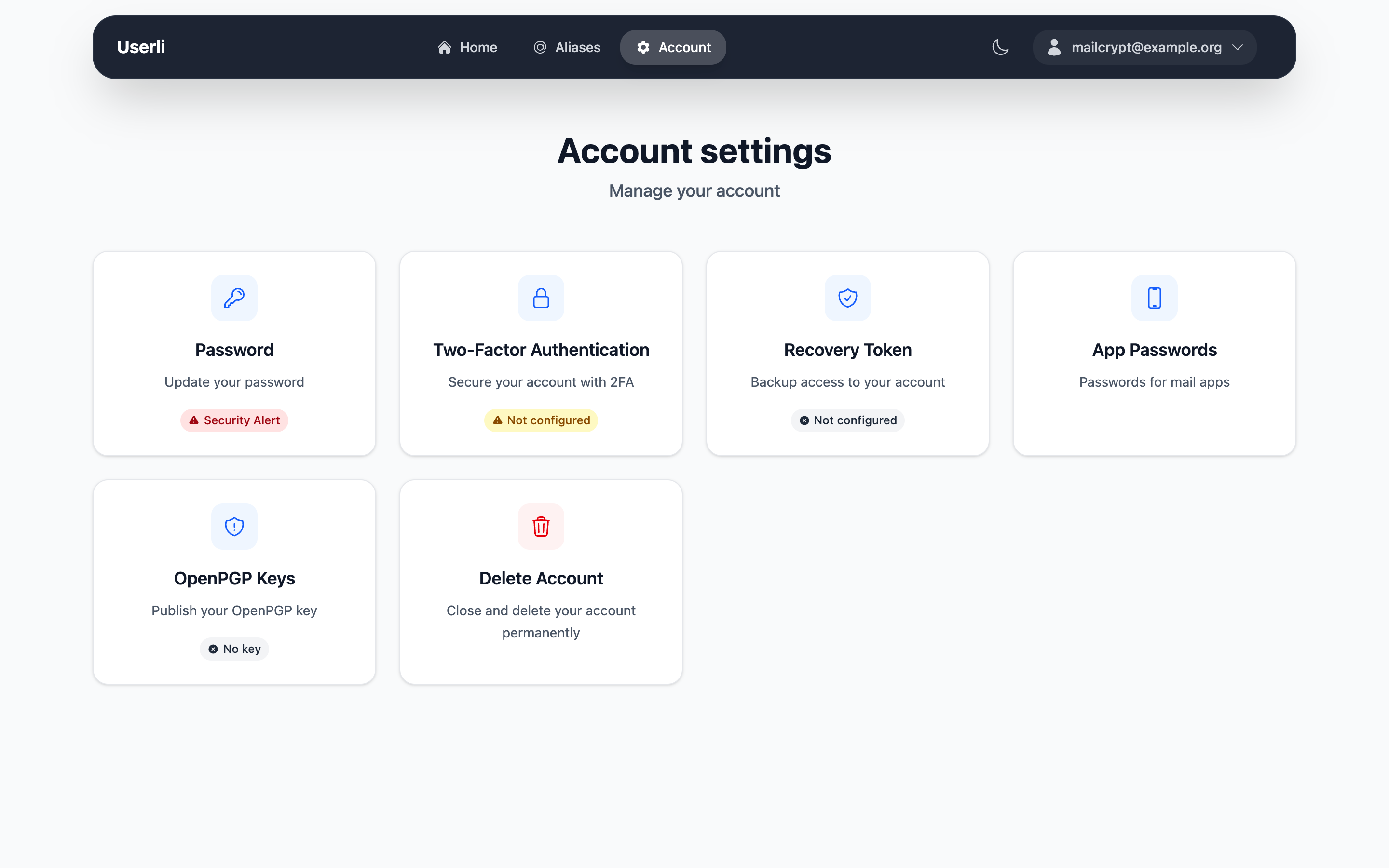
- Go to Account settings → App Passwords.
- Enter a Name that tells you where you use it, for example Thunderbird on laptop. Each name can be used only once.
- Enter your current password to confirm it's you and click Generate app password.
- Copy the new app password and enter it in your email program instead of your password.
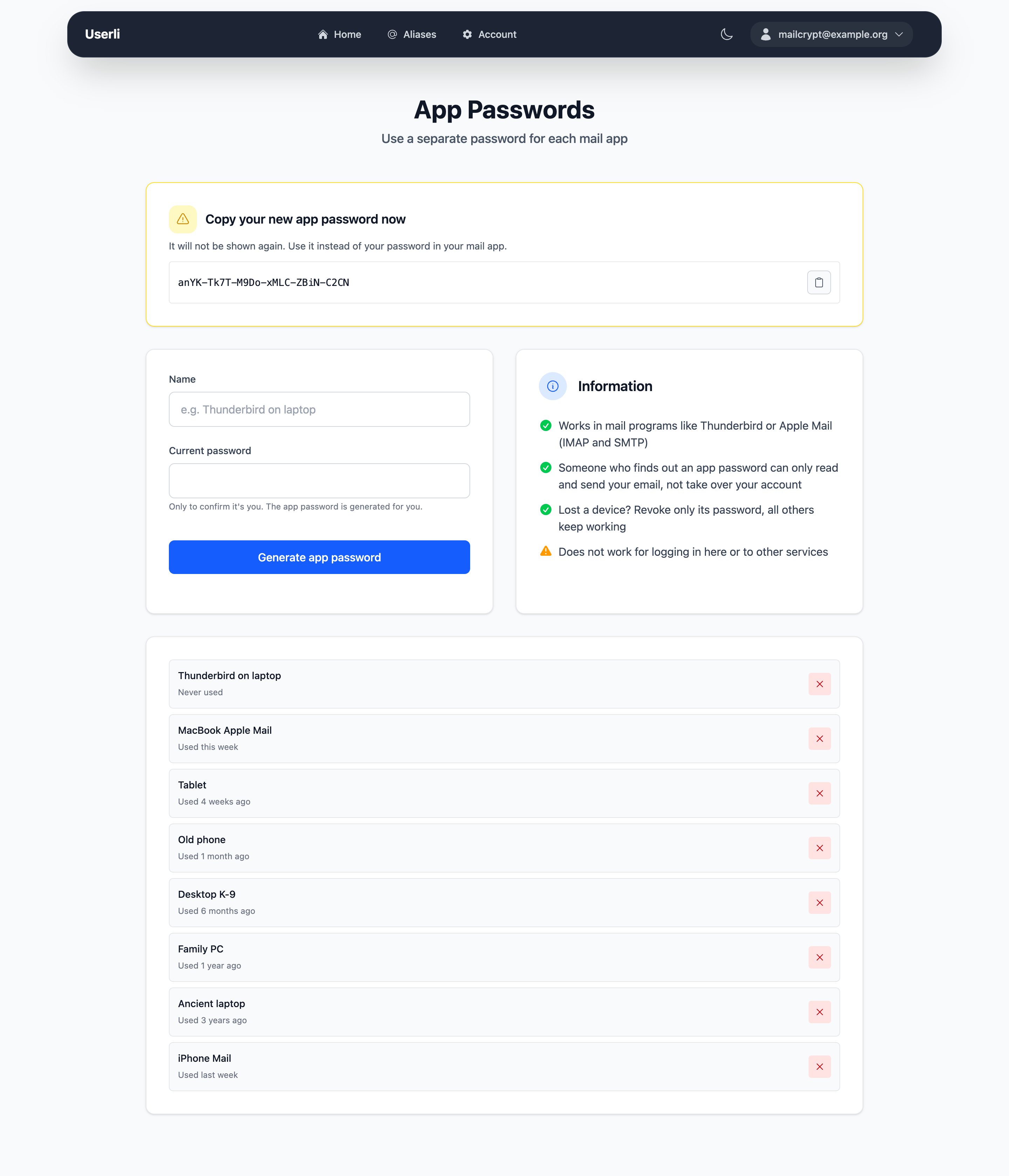
Warning
The app password is shown only once. If you lose it, delete it and create a new one.
Delete an app password
The list shows roughly when each app password was last used, for example last week or 3 months ago. Delete the ones you no longer need.
Go to Account settings → App Passwords, click the delete button (×) next to the app password and confirm. The app using it can't sign in anymore.
Changing your password does not delete your app passwords. If you reset your password with your recovery token, your provider resets your account or you delete your account, all app passwords are deleted.