Sign in and your account
Sign in
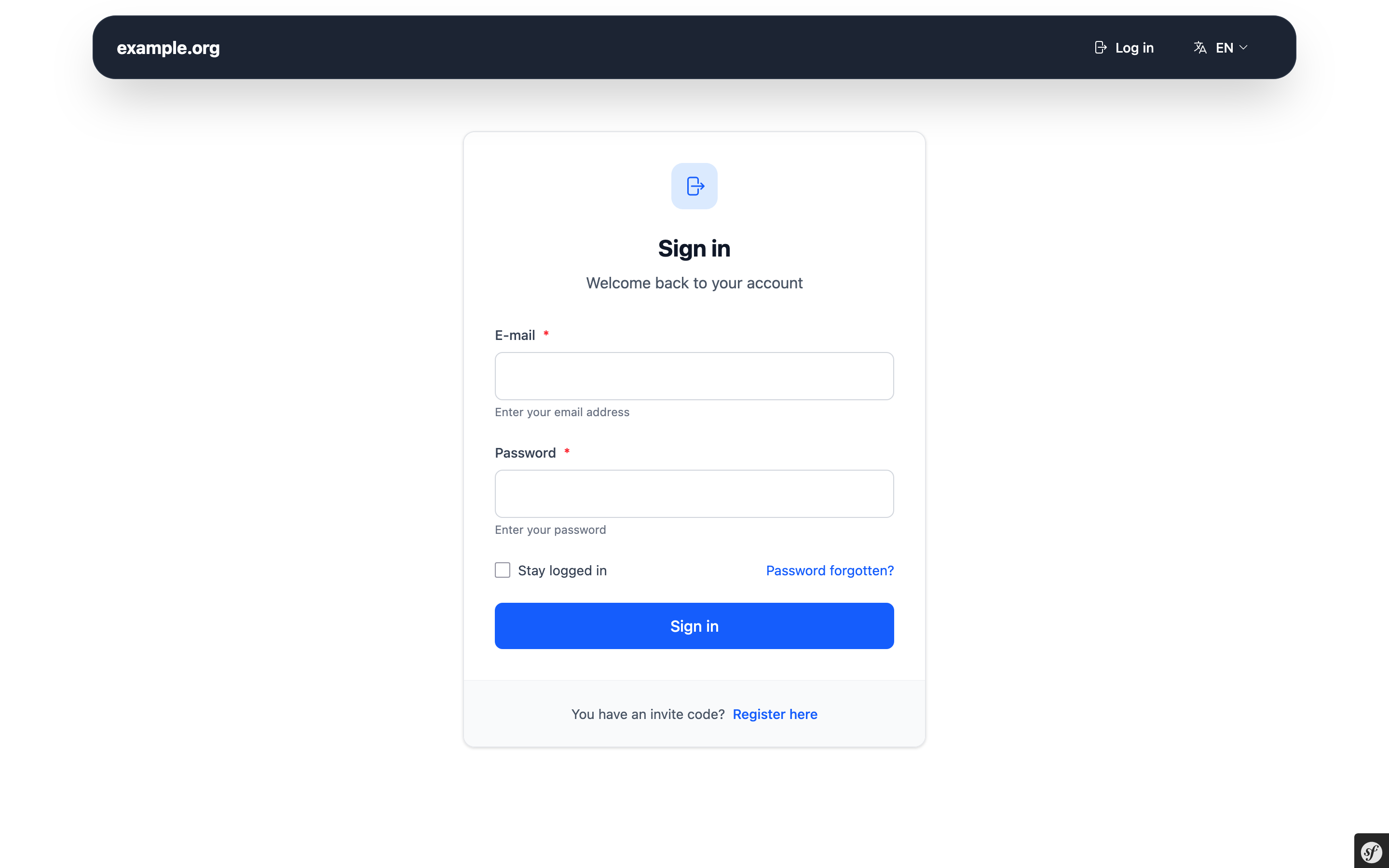
Open the web address of your provider and click Sign in (or use the form on the start page). Enter
- E-mail: your full email address. On most services, the part before the
@is enough for addresses on the main domain. - Password: your password.
If you have turned on two-factor authentication, you are asked for a 6-digit code afterwards.
If the sign-in fails, check your address and password. Forgot your password? Click Password forgotten? and follow Forgot your password.
To sign out, open the user menu at the top right and click Log out.
Your account overview
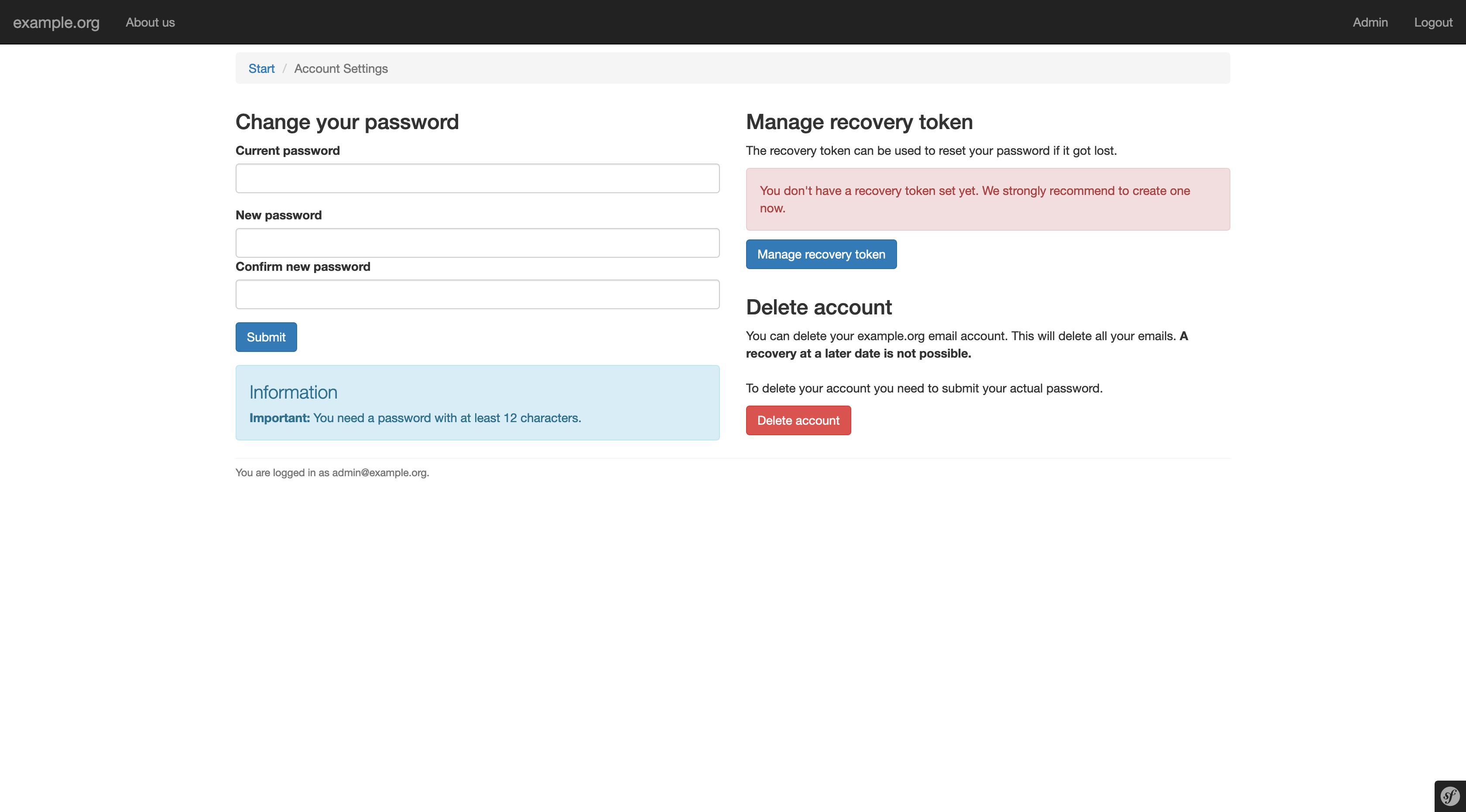
After signing in you see the overview of your account:
| Card | What it does |
|---|---|
| Webmail | Opens the webmail of your provider (only shown if available). |
| Invite codes | Shows your invite codes (only shown if invitations are enabled). |
| Alias addresses | Manage your aliases. |
| Account settings | Password, two-factor authentication, recovery token, OpenPGP keys and account deletion. |
Security alert
If your password was found in a database of known data breaches, a red Security Alert banner appears on every page. Your password is checked automatically when you sign in. Change your password as soon as possible – the banner disappears afterwards.
Account locked
If you see the page "Account locked", your provider believes that a spammer has misused your account and has turned off email access. Contact the support of your provider to unlock it.
Account settings
Account → Account settings shows the status of your security features at a glance.
Change your password
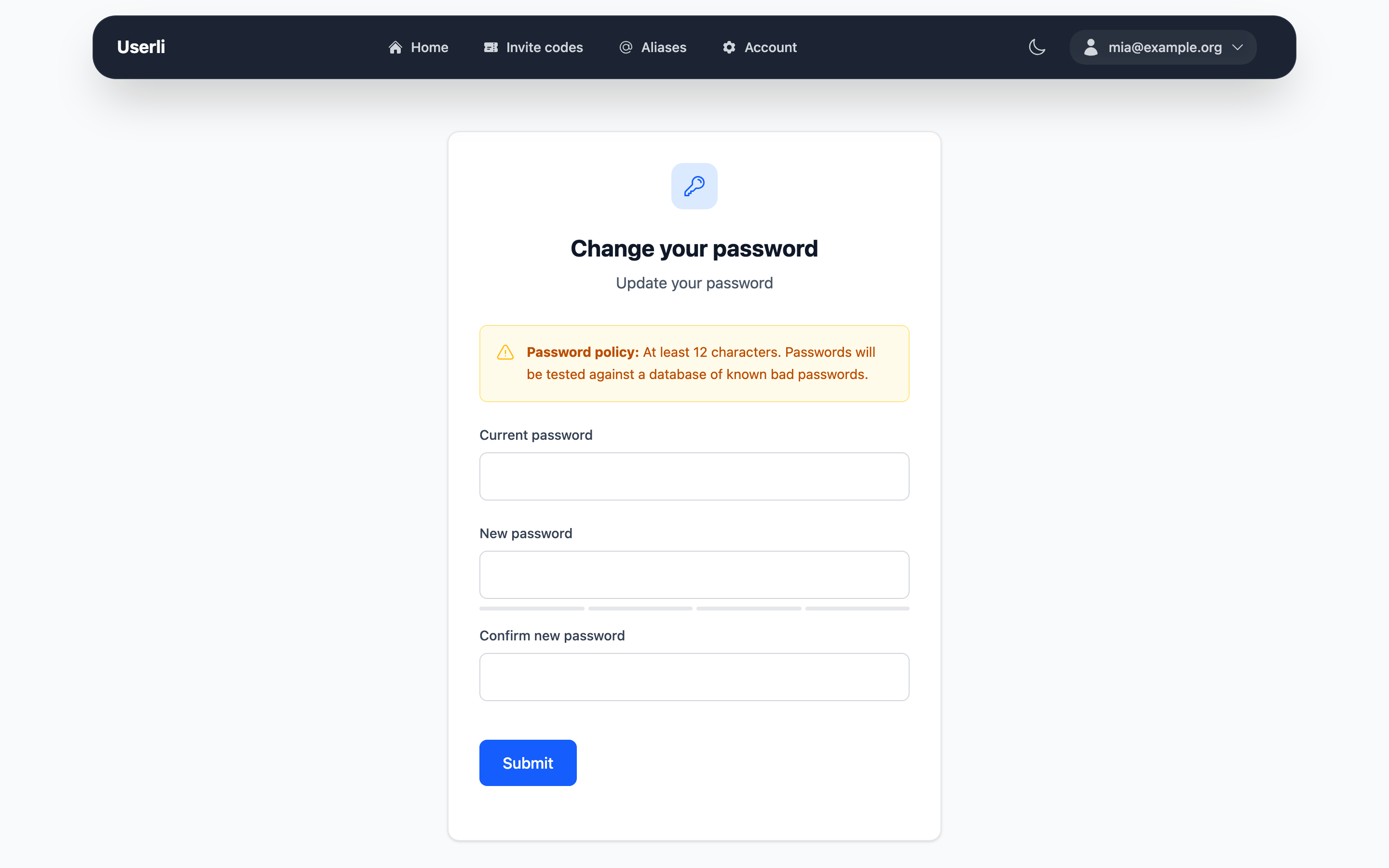
Go to Account settings → Password. Enter your current password and your new password twice, then click Submit.
The new password must have at least 12 characters, must not appear in known data breaches and must differ from the old one.
Tip
Changing your password does not change your recovery token. Your existing token stays valid.
Password change required
If your admin requires a password change (for example, after setting an initial password for you), every page redirects to the password form until you have chosen a new password. Your email program cannot sign in until then, either.
Change the language
Open the user menu at the top right and choose a Language. Userli also uses the language of your web browser automatically. Emails from Userli are sent in the language you are using.
You can switch between light and dark mode with the toggle in the navigation bar.