Forgot your password
If you forgot your password, you can set a new one with your recovery token. Your emails stay readable.
Without a recovery token
If you have lost both your password and your recovery token, only your provider can help. An admin can set a new password, but your existing encrypted emails will be lost.
How it works
For your security, password recovery takes two steps with a waiting period of 48 hours in between. During this time, you receive an email and can stop the recovery in case someone else started it.
flowchart LR
    A[Enter address<br/>and recovery token] --> B[Wait 48 hours]
    B --> C[Enter address and<br/>recovery token again]
    C --> D[Set new password]
    D --> E[Store new<br/>recovery token]
Step 1: Start the recovery
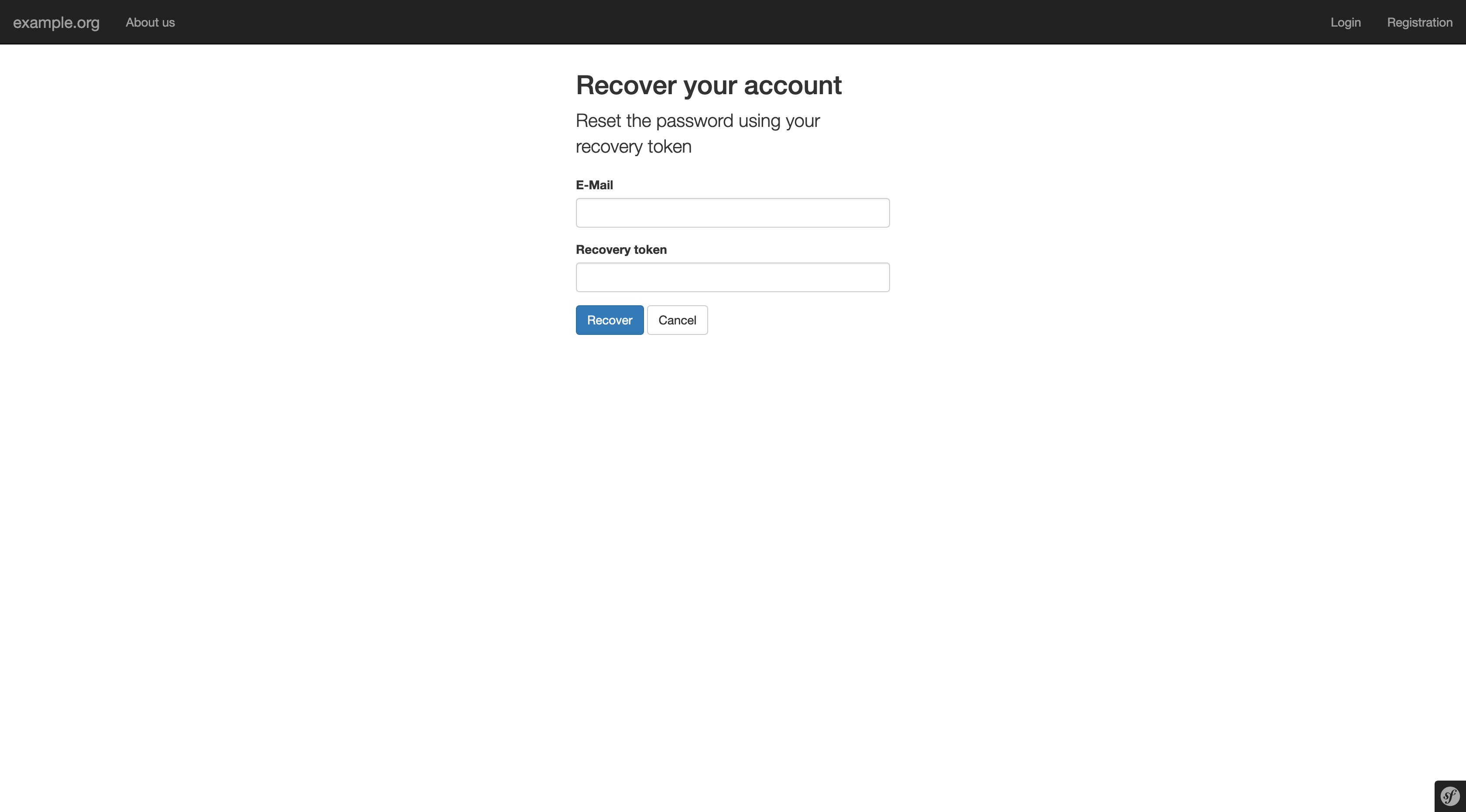
- Click Password forgotten? on the sign-in page.
- Enter your E-mail address and your Recovery token and click Recover.
- The page shows the date and time when you can continue. Keep your recovery token until then.
You receive an email that your password will be reset. The waiting period can't be shortened.
You didn't start this?
If you receive this email but did not start the recovery, someone else knows your recovery token. Sign in and create a new recovery token immediately. This stops the recovery.
Step 2: Set a new password
After 48 hours, open Password forgotten? again and enter the same address and recovery token. Now you can choose a new password (at least 12 characters, not found in known data breaches).
You have 30 days to finish this step. After that, you have to start again.
Step 3: Store your new recovery token
Your old recovery token has been used up. Userli shows you a new recovery token. Store it safely, confirm and click Continue. Then sign in with your new password.
Two-factor authentication is reset
The recovery turns off two-factor authentication, because you may have lost your phone as well. Turn it on again after signing in.