Create an account
New accounts can only be created with an invite code. An invite code is a
code of six letters and digits, for example aB3xY9. You get one from someone
who already has an account – every user can receive invite codes to invite
friends (see Invite codes).
Why invite codes?
Invite codes protect the service from mass registrations by spammers. If you don't know anybody with an account, ask your provider whether they give out invite codes.
Step 1: Enter the invite code
You can start in two ways:
- You got a link like
https://users.example.org/register/aB3xY9: open it, and you skip directly to step 2. - You got only the code: open the start page of your provider, enter it in the Registration box under Invite code and click Create account.
If the code is wrong or was already used, you see "The invite code is invalid." or "The invite code has already been used." If you see the page "Registration closed", your provider has stopped registrations for now.
Step 2: Choose your address and password
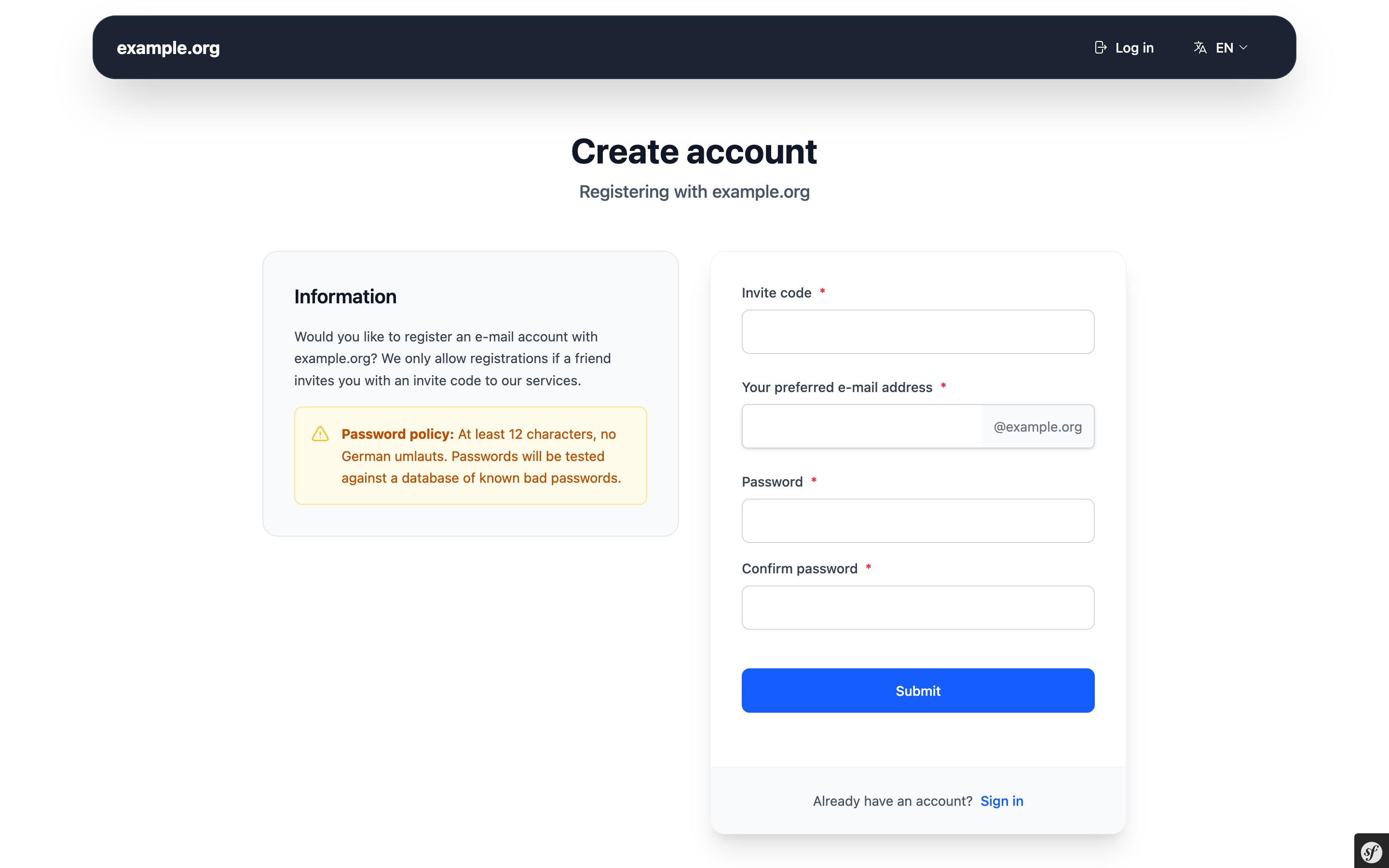
Your preferred e-mail address
: Enter only the part before the @. The domain is fixed by the invite code.
* Use 3 to 32 characters.
* Allowed are lowercase letters, digits and `-`, `_` and `.`.
* Some names such as `admin`, `abuse` or `postmaster` are reserved.
* An address that was used before – even by a deleted account – can never
  be registered again.
Password and Confirm password : Your password must
* have at least 12 characters, and
* not appear in a database of known data breaches
  ([Have I Been Pwned](https://haveibeenpwned.com/Passwords)).

The meter below the field shows whether your password is strong enough.
Use a password that you don't use anywhere else. A password manager helps.
Click Submit.
Step 3: Store your recovery token
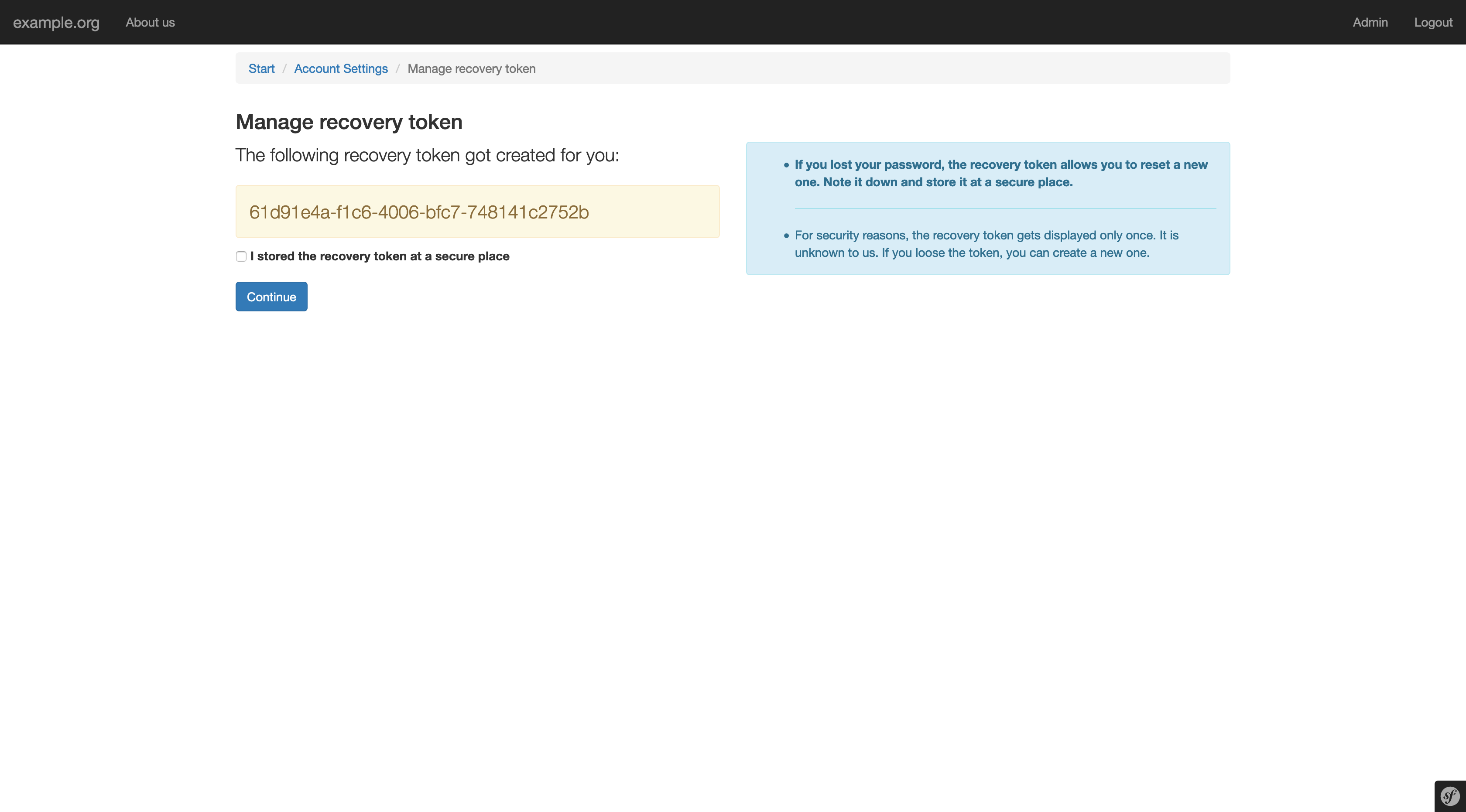
Right after registration you see your recovery token – a long code like
1a2b3c4d-..... If you forget your password, this token is the only way to
get back into your account and keep your emails readable.
- Copy it with Copy to clipboard and store it somewhere safe, for example in a password manager or printed on paper.
- The token is shown only once. Nobody, including your provider, can show it to you again.
Check I stored the recovery token at a secure place and click Continue.
Step 4: Welcome
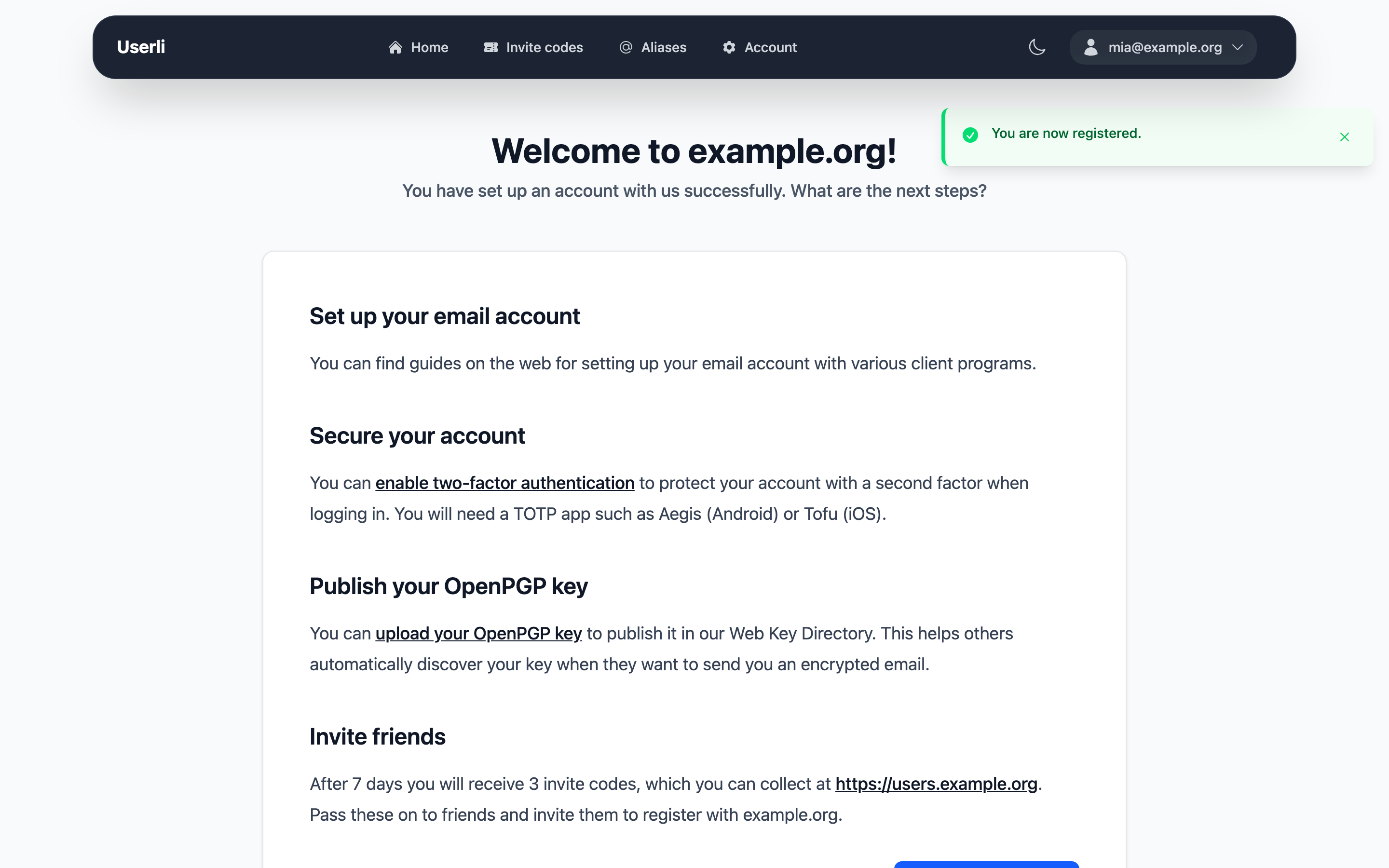
Your account is ready and you are signed in. The welcome page suggests the next steps:
- Set up your email program or open the webmail.
- Turn on two-factor authentication.
- Publish your OpenPGP key, if you use one.
- Invite friends – after a waiting period you get invite codes, too.
You also receive a welcome email in your new inbox.