Secure your account
Two features protect your account: two-factor authentication keeps others out even if they know your password, and the recovery token lets you back in if you forget your password.
Two-factor authentication
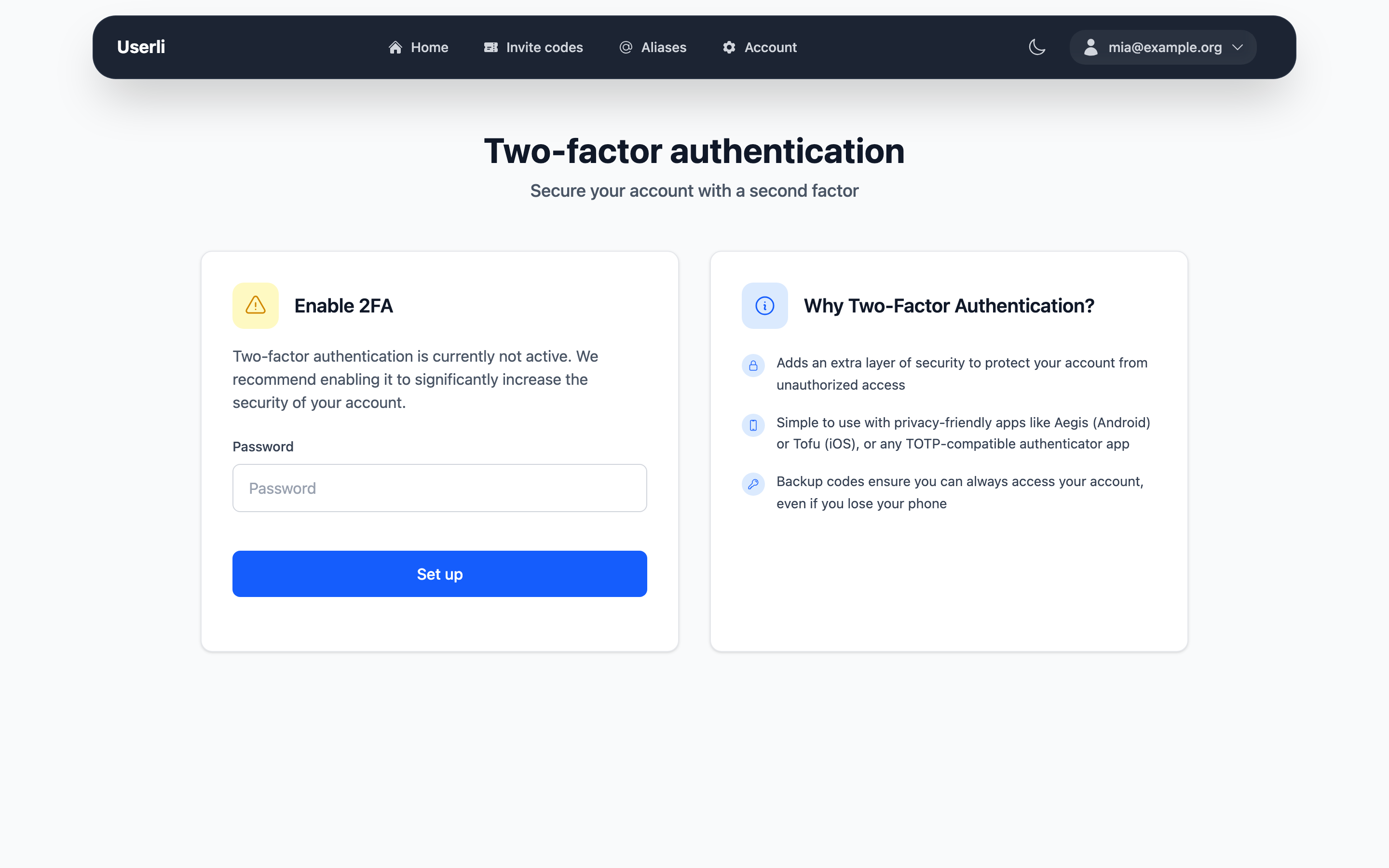
With two-factor authentication (2FA) you need a 6-digit code from an authenticator app on your phone, in addition to your password, to sign in to the web interface. The code changes every 30 seconds.
You need an authenticator app (TOTP), for example Aegis (Android), Tofu (iOS) or the app of your password manager.
Note
2FA protects the sign-in to the web interface. Your email program keeps using only your password.
Turn on 2FA
- Go to Account settings → Two-Factor Authentication.
- Enter your password and click Set up.
- Scan the QR code with your authenticator app. If you can't scan it, copy the Setup Key and enter it manually in the app.
- Enter the 6-digit code shown in the app under Authentication code and click Verify.
- You now see six backup codes. Each backup code can be used once instead of a code from the app – for example, if you lose your phone. Copy them and store them safely, check Backup codes stored securely and click Verify.
2FA is now active.
Warning
The backup codes are shown only once. To get new ones, turn 2FA off and on again.
Sign in with 2FA
After entering your email address and password, open your authenticator app and enter the current code under Authentication code. Instead of the code you can also enter one of your unused backup codes.
Turn off 2FA
Go to Account settings → Two-Factor Authentication, enter your password and click Disable.
Recovery token
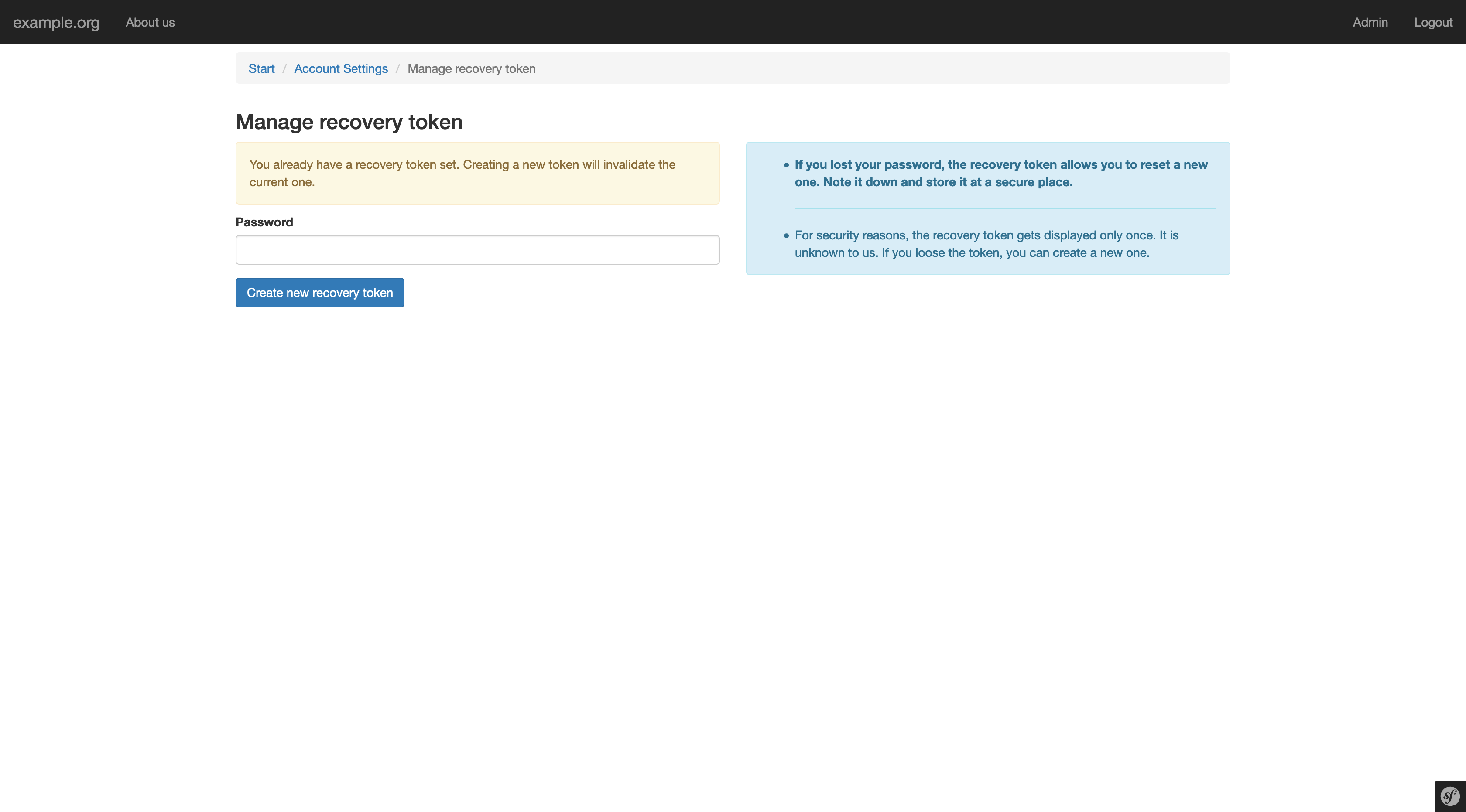
The recovery token is a long code like
1a2b3c4d-5e6f-7a8b-9c0d-1e2f3a4b5c6d. You received it when you created your
account. With it you can set a new password if you forget yours.
Your emails are stored encrypted. Only your password – or your recovery token – can unlock them. That is why your provider can't simply reset your password without making your old emails unreadable.
Create a new recovery token
Create a new token if you lost the old one, if somebody else might know it, or if your account doesn't have one yet (the card shows Not configured).
- Go to Account settings → Recovery Token.
- Enter your password and click Create new recovery token.
- Copy the new token and store it safely. Check I stored the recovery token at a secure place and click Continue.
The old token stops working immediately. A password recovery that somebody started with the old token is cancelled.